
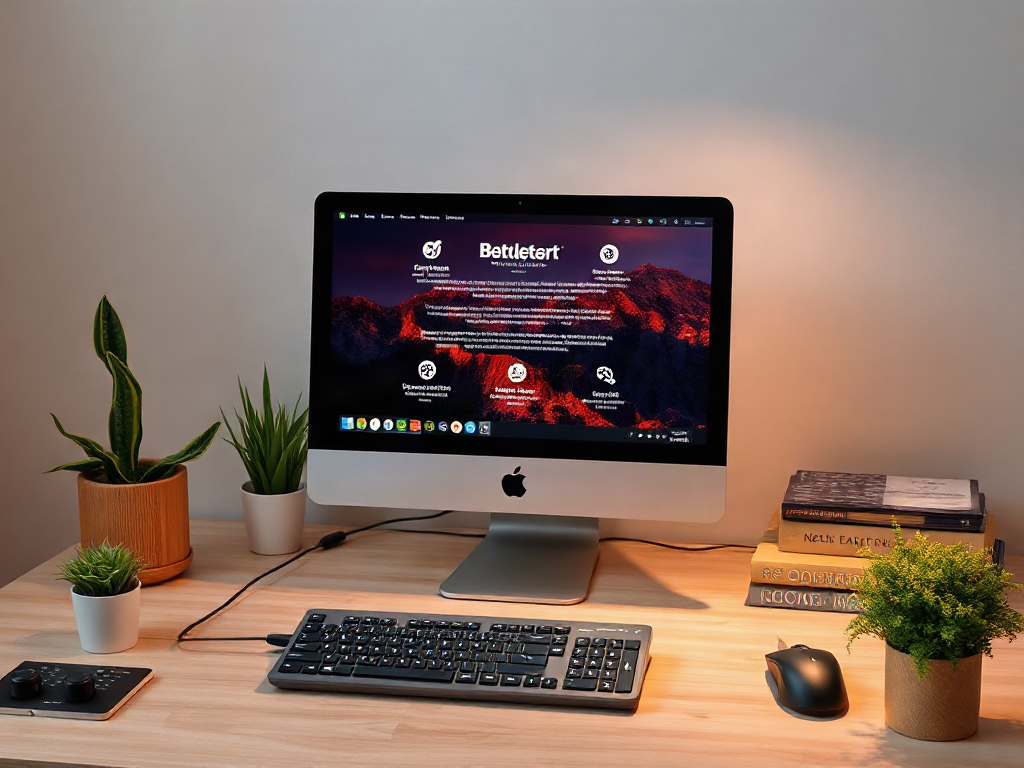
Computer users can support joint comfort naturally by reducing prolonged static positions, placing the keyboard and mouse within easy reach, taking frequent movement breaks, and building strength outside working hours. A neutral wrist position may limit unnecessary strain, while alternating between sitting, standing, and walking changes the load on the hips, knees, spine, and shoulders. Food, hydration, sleep, and regular exercise contribute to general musculoskeletal health but cannot compensate for a poorly arranged workstation. Persistent swelling, weakness, numbness, or pain that disrupts normal activity deserves assessment by a qualified healthcare professional rather than repeated self-treatment.
Why Does Computer Work Affect Joint Comfort?
Computer work commonly becomes uncomfortable because the body remains nearly motionless while a few areas perform thousands of small, repeated actions. Typing and mouse use involve the fingers and forearms, but their effects can extend upward when the shoulders are held raised or the arm reaches forward. Meanwhile, the hips and knees stay flexed, the back receives little variation in load, and the ankles move less than they would during ordinary walking.
Static posture is different from heavy physical effort. A position may look relaxed yet become tiring when muscles must hold it for a long time. Leaning toward a laptop, for example, asks the neck and upper-back muscles to support the head away from the torso. Planting the wrist on a hard desk edge can concentrate pressure in a small area. Neither problem is solved simply by buying a chair if the screen, keyboard, and work habits remain unchanged.
The goal is not to maintain one supposedly perfect posture all day. Bodies benefit from variation, and even a well-aligned position can become uncomfortable when held without interruption. A computer user may feel better after raising a low monitor, then notice hip stiffness because the improvement made it easier to sit for two uninterrupted hours. The useful lesson is that workstation fit and movement frequency must work together.
Symptoms also do not identify a single cause. Wrist soreness could relate to keyboard angle, forceful typing, prolonged mouse gripping, exercise outside work, an existing condition, or several factors at once. Knee discomfort during sitting may reflect sustained flexion rather than damage to the knee itself. Treating every ache as inflammation—or assuming that a supplement will correct it—can delay a more useful review of task duration, equipment placement, and symptom patterns.
Track what happens before making multiple changes. Note where discomfort starts, how long you have been working, which device you were using, and whether symptoms settle after movement. A repeatable connection, such as shoulder fatigue that appears during spreadsheet work on a second monitor, offers more practical direction than a vague impression that the entire desk is wrong.
Which Workstation Adjustments Reduce Unnecessary Strain?
A useful workstation keeps frequently used controls close enough that the elbows can remain near the torso and the shoulders do not need to hover. Begin with the keyboard and mouse because they govern upper-limb position throughout active computer work. Place both on the same level, bring the mouse beside the keyboard, and avoid reaching around paperwork or a numeric keypad that is rarely used.
Keyboard height should permit relaxed shoulders and wrists that are reasonably straight rather than sharply bent upward or sideways. A wrist rest is intended for pauses, not for pressing the wrists down while typing. If a desk is too high, raising the chair may improve arm position, but that creates a second requirement: the feet must still be supported. A stable footrest can be preferable to leaving the legs dangling.
Screen placement affects more than the eyes. A centered primary monitor usually reduces repeated neck rotation, while a screen set roughly at a comfortable viewing distance reduces the tendency to crane forward. People who primarily use one screen should place it directly ahead. Someone comparing documents across two monitors may need the screens closer together and should rotate the chair or torso rather than repeatedly twisting only the neck.
Laptops create a built-in compromise because the display and keyboard cannot both be positioned independently. Raising the laptop can improve viewing height but makes its keyboard impractical to use. For sustained desk work, an external keyboard and pointing device allow the display to be elevated without forcing the arms upward. For a brief email at a kitchen table, elaborate equipment may offer less value than simply ending the task and changing position soon.
Use this adjustment order so one change does not create another problem:
- Set the chair and feet: support the feet and avoid concentrated pressure behind the thighs.
- Position the controls: keep the keyboard and mouse close, level, and easy to operate lightly.
- Place the screen: center the main display and choose a height that does not encourage sustained neck bending.
- Clear the reach zone: move phones, notes, and commonly used objects within comfortable reach.
- Test with real work: type, scroll, and switch applications before deciding that the setup is finished.
Expensive equipment is not automatically better. An adjustable chair has value only when its controls fit the user and are actually set correctly. Low-cost changes—moving the mouse closer, supporting the feet, enlarging text, or using keyboard shortcuts—may remove a repeated source of strain more effectively than replacing every item at once.
How Should You Move During a Computer Workday?
Movement should interrupt computer work before stiffness becomes the signal to stop. The exact schedule depends on task demands, symptoms, and mobility, so a rigid universal interval is less useful than a repeatable pattern of brief position changes. Standing to take a call, walking to refill water, or looking away while gently opening and closing the hands all reduce uninterrupted exposure to the same posture.
Short changes and longer exercise serve different purposes. A brief break varies joint angles and muscle activity during the workday; it is not a replacement for walking, resistance exercise, or other regular physical activity. Conversely, a workout after work does not erase eight hours of nearly continuous sitting. Computer users generally need both interruption of static time and broader conditioning.
Build movement around events that already occur. After sending a report, stand and take several comfortable steps. Between video meetings, let the arms hang, roll the shoulders gently, and straighten the hips and knees. When reading rather than typing, change position or stand if the screen remains easy to view. These cues are often more durable than alarms that sound during calls and are repeatedly dismissed.
Movement should feel controlled, not corrective or aggressive. Forcing a painful wrist stretch, repeatedly cracking a joint, or dropping into a deep squat after prolonged sitting can irritate an already sensitive area. Use a comfortable range and stop if a movement produces sharp pain, tingling, dizziness, or increasing symptoms. People with arthritis, recent injury, surgery, balance limitations, or other medical concerns may need an individualized plan from a clinician.
A practical workday pattern can combine three levels of activity:
| Workday moment | Practical action | What to notice |
|---|---|---|
| During focused tasks | Relax the grip and change hand or arm position when possible | Raised shoulders, hard key strikes, or pressure on the desk edge |
| Between tasks | Stand, walk briefly, or move several joints through a comfortable range | Whether stiffness settles after changing position |
| During a longer break | Walk, climb stairs if appropriate, or perform planned mobility work | Pain that increases rather than eases with gentle activity |
The plan is working when movement happens without repeatedly disrupting concentration and end-of-day stiffness becomes less prominent. It is failing when reminders are ignored, breaks consist only of switching from a computer to a phone, or every pause uses the same standing position. Adjust the cue, shorten the activity, or connect it to a mandatory task rather than abandoning movement altogether.
Exercise, Food, and Recovery Beyond the Desk
General strength and mobility can make computer work more tolerable by increasing the range of positions a person can use comfortably. A balanced program may include pulling movements for the upper back, controlled pushing, leg strengthening, walking, and comfortable mobility for the hips, chest, and forearms. The appropriate exercises and resistance depend on training history, health conditions, and current symptoms.
Someone new to exercise may do better with sit-to-stands, supported rows using a resistance band, wall push-ups, and regular walks than with a complicated corrective routine. A trained person may use heavier rows, presses, carries, and lower-body exercises while still needing to manage workload. More exercise is not always the answer: rapidly adding high-volume gripping after a week of intensive mouse use may compound forearm irritation rather than build useful capacity.

Food contributes to overall health but should not be framed as a desk-related pain treatment. A practical eating pattern includes varied vegetables and fruit, beans or lentils, whole grains, nuts or seeds, and suitable protein sources such as fish, eggs, poultry, tofu, or dairy. Fatty fish provides omega-3 fats, while colorful produce supplies a range of micronutrients and plant compounds. Olive oil, nuts, and minimally processed foods can fit a balanced pattern more readily than meals dominated by refined snacks and sugary drinks.
No single food reliably offsets poor workstation fit or prolonged immobility. Supplements marketed for joints also vary in evidence, composition, dose, and potential interactions. “Natural” does not guarantee safety. Anyone who takes medication, has a medical condition, is pregnant, or is considering combining products should discuss supplement use with a qualified clinician or pharmacist. Food-first choices are generally simpler, but diet itself should remain nutritionally adequate rather than becoming a restrictive anti-inflammatory experiment.
Recovery matters because sleep loss and accumulated workload can affect how discomfort is perceived and how well tissues tolerate activity. Keep work, exercise, household tasks, and hobbies in the same load calculation. A graphic designer who spends the day using a stylus and the evening knitting may need to vary hand-intensive activities even if each task seems light by itself.
Judge progress by function rather than promises of complete relief. Useful signs include tolerating ordinary work with fewer position changes forced by discomfort, recovering more quickly after demanding days, and completing exercise without a next-day flare that alters normal activity. Worsening symptoms, shrinking tolerance, or reliance on pain medication to finish routine work suggests that self-directed changes are not enough.
When Do Joint Symptoms Need Professional Care?
Persistent or progressive symptoms deserve more than workstation experimentation. Seek medical guidance when pain repeatedly interferes with work, sleep, exercise, or everyday tasks, especially when sensible changes have not helped. A clinician can consider whether the problem arises from a joint, tendon, muscle, nerve, or another source; those possibilities may feel similar to the person experiencing them but require different management.
Prompt assessment is particularly appropriate for a visibly swollen, hot, or red joint; marked weakness; loss of coordination; numbness that persists; a joint that locks or gives way; significant pain after injury; fever with joint symptoms; or an inability to use the affected limb normally. Sudden chest discomfort, breathing difficulty, or symptoms suggesting an emergency require urgent care rather than ergonomic advice.
Do not assume that tingling in the hand is merely wrist strain or that all morning stiffness comes from sitting. Nerve irritation can originate at different points, and inflammatory or systemic conditions cannot be identified from desk habits alone. Likewise, imaging is not automatically the first or most useful step. A professional history and physical assessment often help determine whether testing is warranted.
Bring specific information to an appointment: the symptom location, onset, pattern, aggravating tasks, relieving activities, previous injuries, medication or supplement use, and workstation changes already attempted. Photos of the working position may help communicate the setup, though they do not replace examination. If work duties are central to the problem, an occupational health professional, physical therapist, occupational therapist, or ergonomics specialist may contribute task-specific recommendations within their scope.
The common mistake is waiting for severe pain while repeatedly changing chairs, braces, or supplements. Early guidance can be more useful when symptoms are affecting function, even if their intensity seems modest. Self-care is best treated as a monitored trial: make a limited number of changes, observe the response, and escalate appropriately when function does not improve or warning signs appear.
Conclusion
Better joint comfort at a computer usually comes from removing repeated sources of strain rather than searching for one perfect product. Position the keyboard and mouse before refining the rest of the desk, support the feet, center the main screen, and test adjustments during real tasks. Pair that setup with frequent changes of position and a sustainable program of walking, strength, mobility, balanced meals, and adequate recovery.
Change only a few variables at a time and watch how symptoms and work tolerance respond. If discomfort keeps returning, affects normal function, or appears with swelling, weakness, persistent numbness, or other warning signs, move beyond self-management and seek appropriate care. The most useful next step is a short audit of one ordinary workday: identify the longest static periods, the farthest repeated reaches, and the first activity linked to symptoms.
Frequently Asked Questions
Can a standing desk prevent joint discomfort?
A standing desk adds position variety, but prolonged standing can also fatigue the feet, knees, hips, and back. Alternate positions, use an appropriate work surface height, and keep moving rather than treating standing as the universally correct posture.
Should wrists rest on the desk while typing?
Avoid pressing the wrists into a hard edge during active typing. Keep the hands aligned comfortably with the forearms, use a light touch, and reserve a padded palm support mainly for pauses.
Are joint supplements useful for computer-related soreness?
Supplements cannot correct sustained reaching, static posture, or poor equipment placement, and evidence differs among products. Discuss safety and interactions with a clinician or pharmacist before using one, particularly if you take medication.
What is the best mouse for wrist comfort?
No single design suits every hand or task. Choose a mouse that fits without forceful gripping, place it close to the keyboard, adjust pointer sensitivity, and test whether symptoms improve rather than relying on an ergonomic label.
When should computer users seek help for numbness?
Persistent, recurring, or worsening numbness—especially with weakness, clumsiness, significant pain, or loss of function—should be assessed by a qualified healthcare professional. Sudden severe neurological symptoms require urgent evaluation.